
This article is part of the Windows 365 Frontline Shared series. If you haven’t read the first post yet, read Part 1: How to Hide the Single Sign-On Consent Prompt.
The Device Preparation Policy for Cloud PC deployments is currently in preview and available for all Windows 365 editions, Enterprise and Frontline, in both Dedicated and Shared Mode. But why is a Device Preparation Policy so important? Because it ensures that all required apps, configurations, and scripts are applied before users sign in to their Windows 365 Cloud PCs, delivering a consistent and ready‑to‑use experience from the very first login.
You can follow the official step‑by‑step guide to enable Windows Autopilot Device Preparation in Automatic Mode for Windows 365 here.
This blog article focuses on using the Autopilot Device Preparation Policy together with Windows 365 Frontline in Shared Mode to ensure that every Cloud PC is fully prepared before users sign in. It serves as an extension to the existing guide (linked above) and highlights the specific considerations and configuration differences for Shared Mode Cloud PCs.
Requirements
Please review the Windows Autopilot device preparation requirements here, including networking, software, licensing, and other prerequisites.
Assign the Intune Provisioning Client Service Principal to the Device Group
Autopilot Device Preparation requires the Intune Provisioning Client service principal to be an Owner of the assigned device group. You can either create a new assigned device group or use an existing one and grant ownership to the service principal.
Note: If you can’t find the Intune Provisioning Client service principal in your tenant, search for the App ID
f1346770-5b25-470b-88bd-d5744ab7952c.
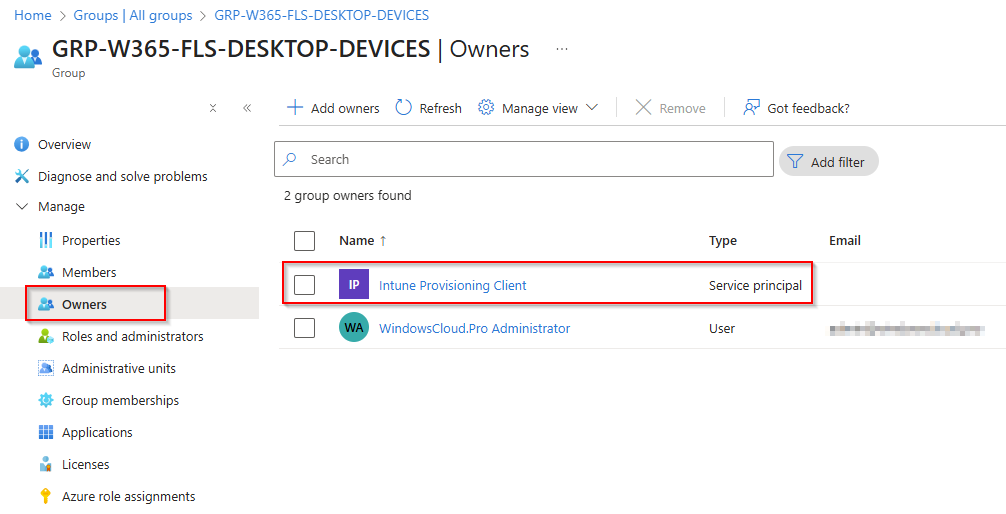
Note: Windows Autopilot device preparation doesn’t use dynamic groups.
During Windows Autopilot device preparation, devices are automatically added to this device group. You don’t need to manually add devices as members, but doing so won’t affect the Autopilot device preparation process.
Create a Device Preparation Policy for Cloud PC
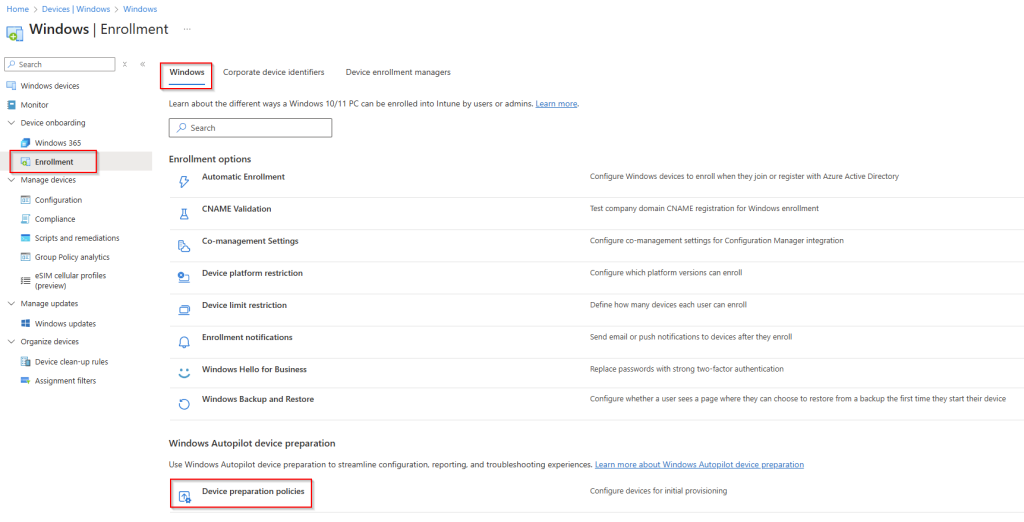
Open the Intune Device Enrollment page, go to Windows, and select Device preparation policies.
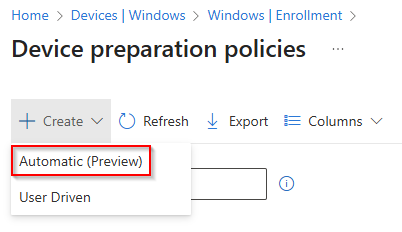
Click Create and then select Automatic (Preview) as the device preparation policy type.
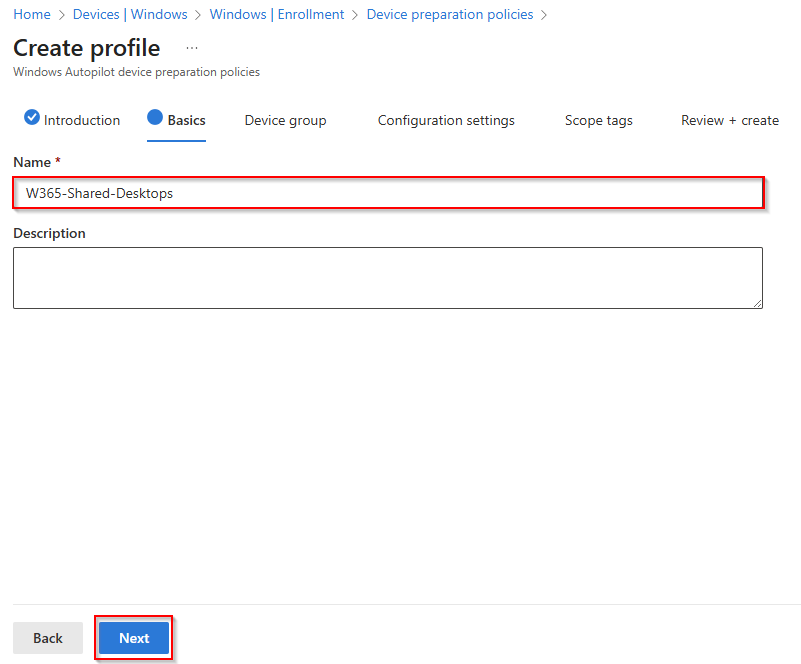
Enter a unique name that describes your use case for Windows 365 Cloud PC and click Next.
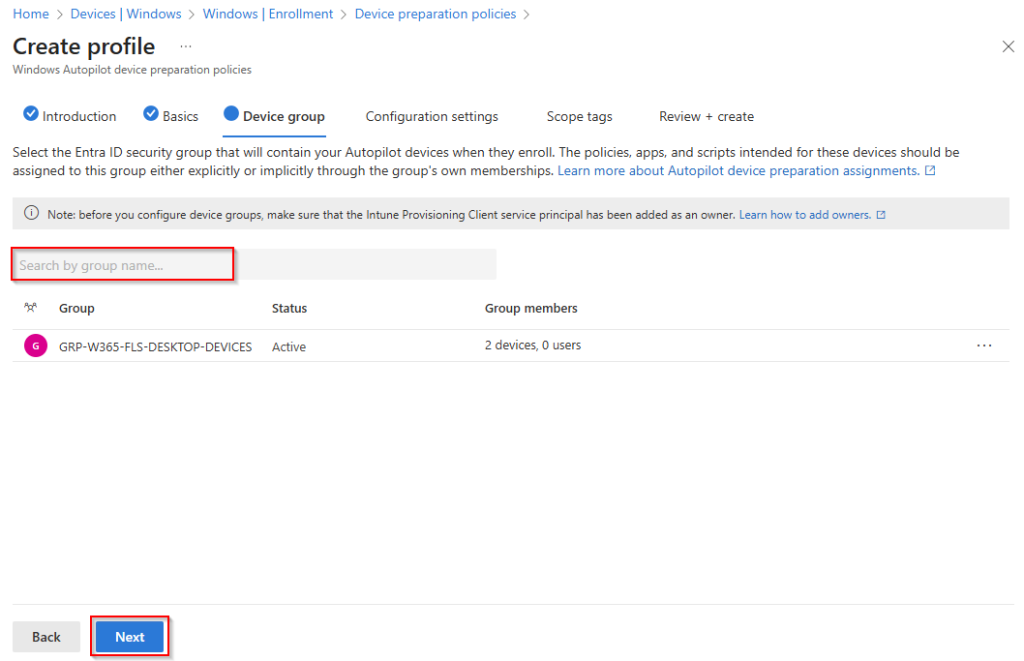
For the next step is the previous step required but you will see also the follow box:

Search for your assigned device group, then select it from the results and click Next.
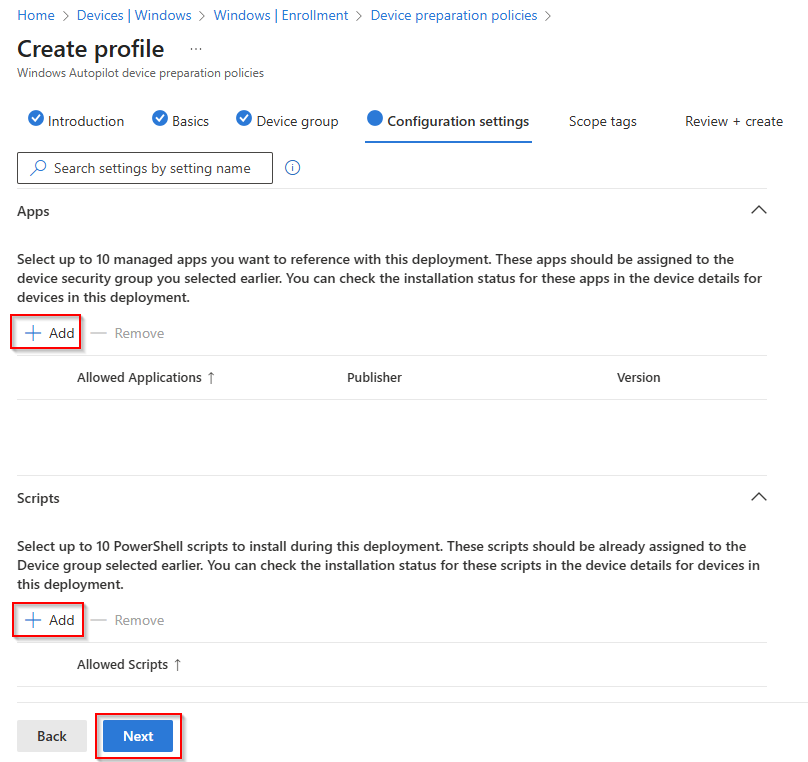
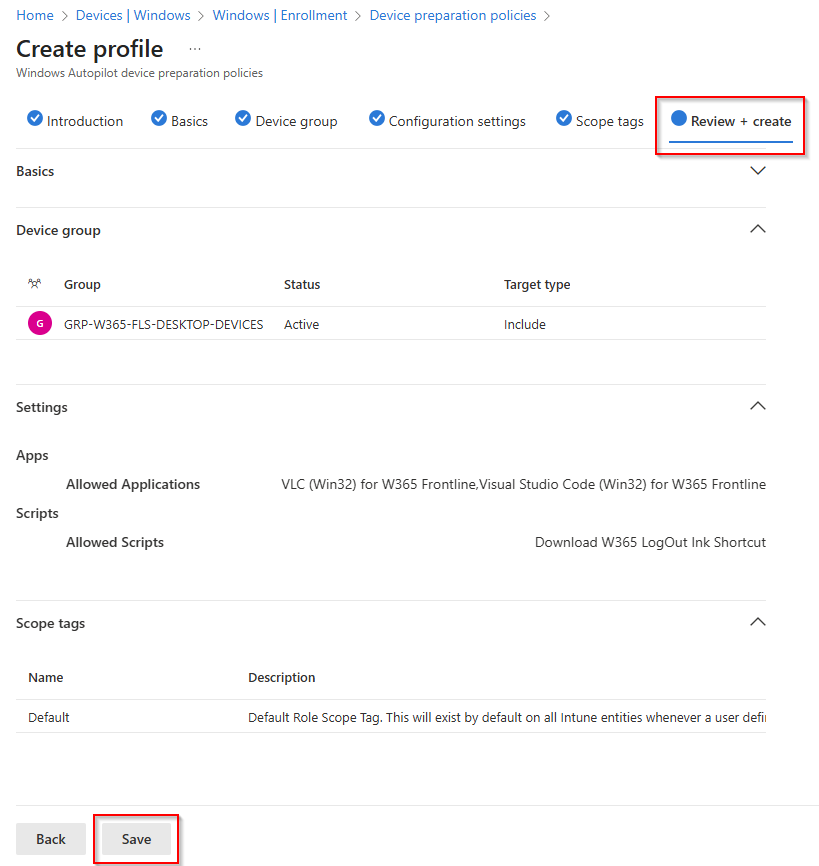
In the Configuration settings tab, you can select up to 10 apps and up to 10 scripts to include in the device preparation policy. These will be installed before the Cloud PC is ready for the user to connect.
Click Add in the Apps or in the Scripts section.
Install the apps in the system context to ensure they’re available for all users.
In my demo, I add Win32 applications to the device preparation policy for my Windows 365 Frontline Cloud PCs running in Shared Mode.
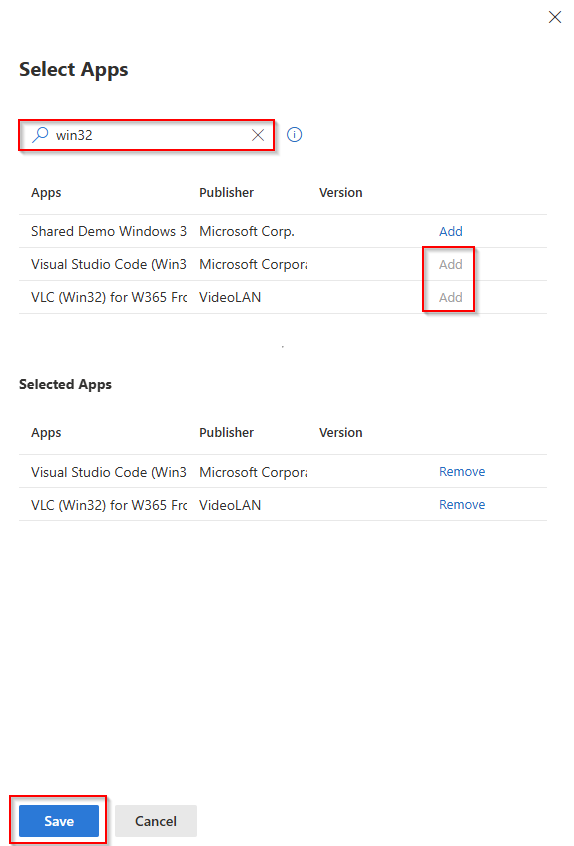
Note: You must also assign all selected apps and scripts to your Windows 365 Cloud PC device groups, otherwise the apps or scripts will be skipped in the device preparation policy.
After selecting all your apps and scripts, click Save. Review the overview details, then click Next.
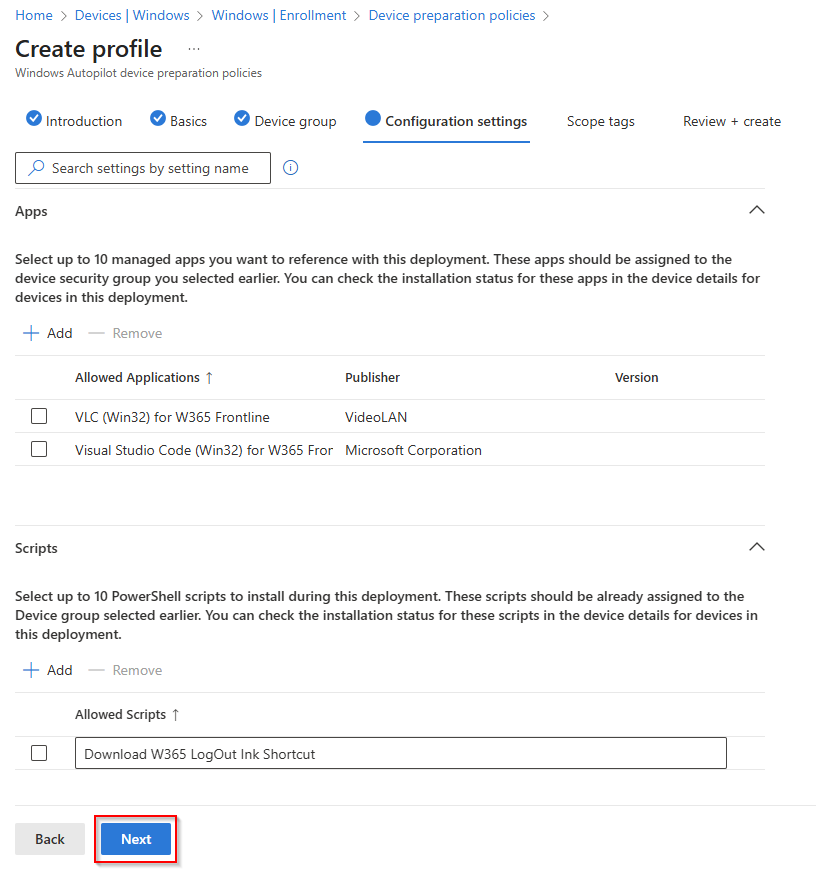
If needed, assign a scope tag and review your configuration before clicking Save.
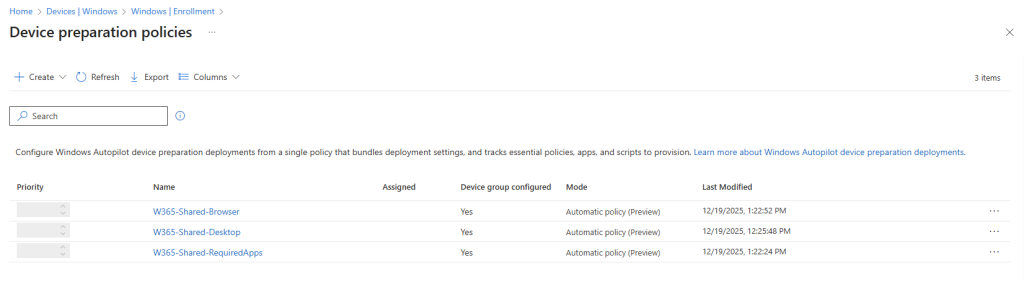
After saving, you should see all your device preparation policies listed.
Assign Device Preparation Policy to Windows 365 Provisioning Policy
Your previously created device preparation policy must be assigned to your Windows 365 provisioning policy, otherwise the preparation policy will not be applied and the devices will not be automatically added to the device group.
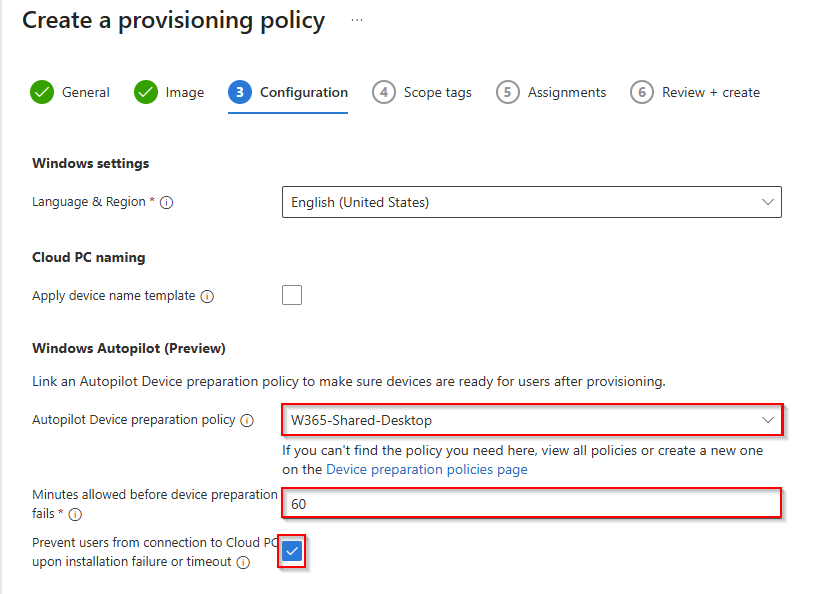
During the provisioning policy setup, select your device preparation policy in the Configuration tab. Then specify a timeout and enable the option to prevent users from connecting to the Cloud PC if installation fails or the timeout is reached.
Alternatively, you can update an existing Windows 365 provisioning policy to include your device preparation policy.
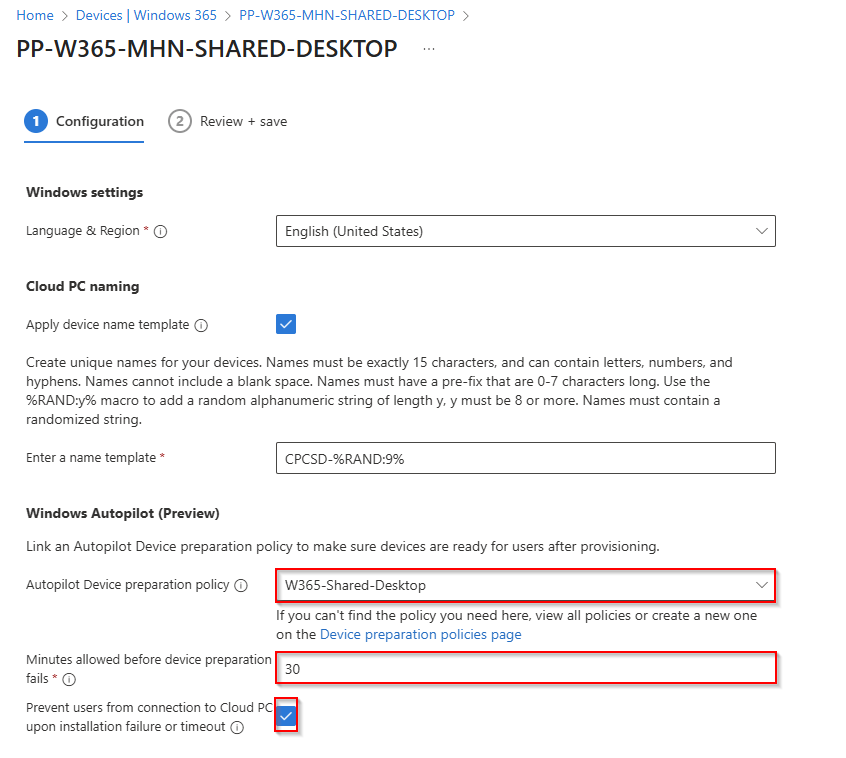
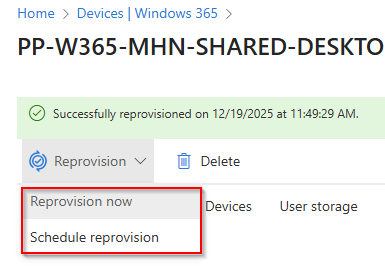
When you modify an existing provisioning policy, you must reprovision all Cloud PCs to ensure they are prepared as expected.
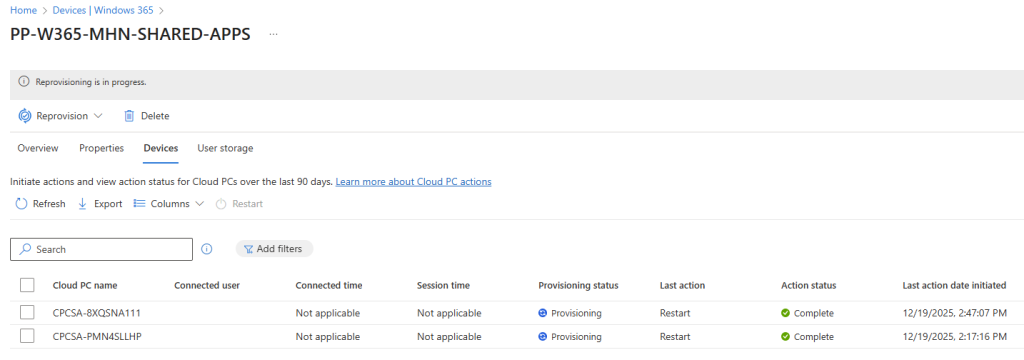
In the provisioning policy under Devices, you can view the provisioning status of all your Cloud PCs.
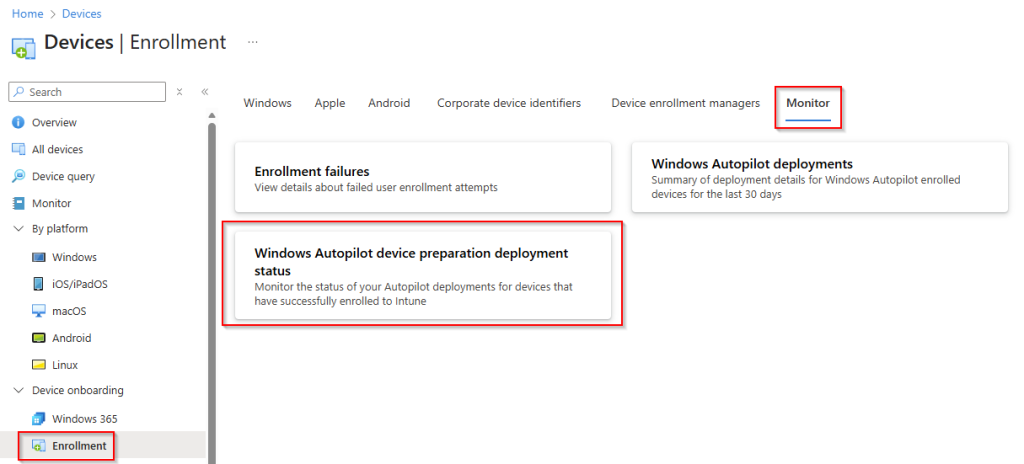
Monitor Device Preparation Policy Status
Open the Intune Device Enrollment page, go to Monitor, and select Windows Autopilot device preparation deployment status to view all devices that have applied a device preparation policy.
Select the device you want to review.
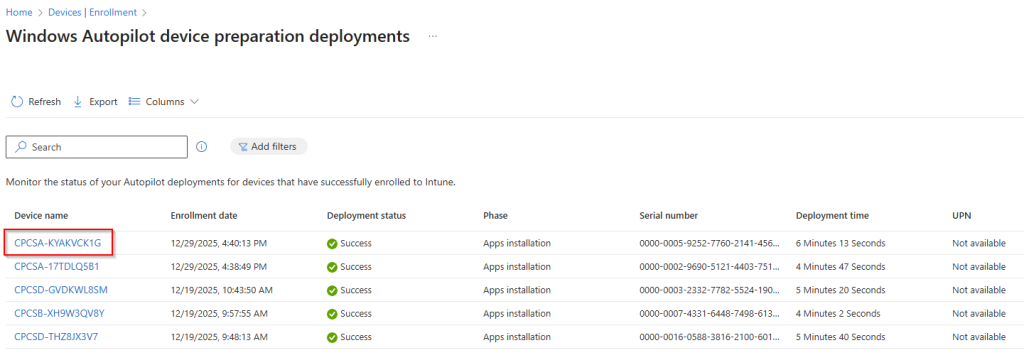
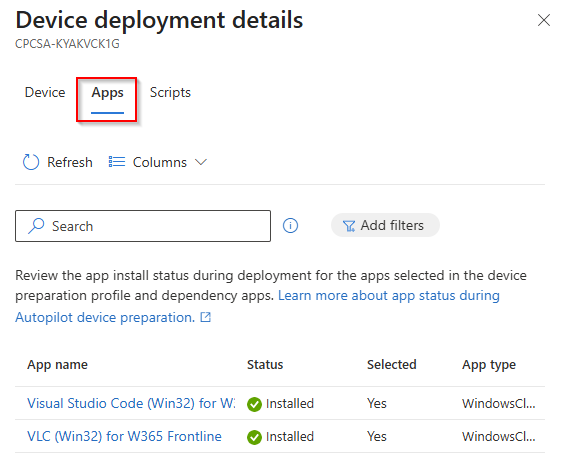
You can now see the status of all assigned apps and scripts from the device preparation policy.
User Experience during the Reprovisioning Process
What is the user experience during the reprovisioning process? Users receive an informational message in the Windows app indicating that the preparation process is active.
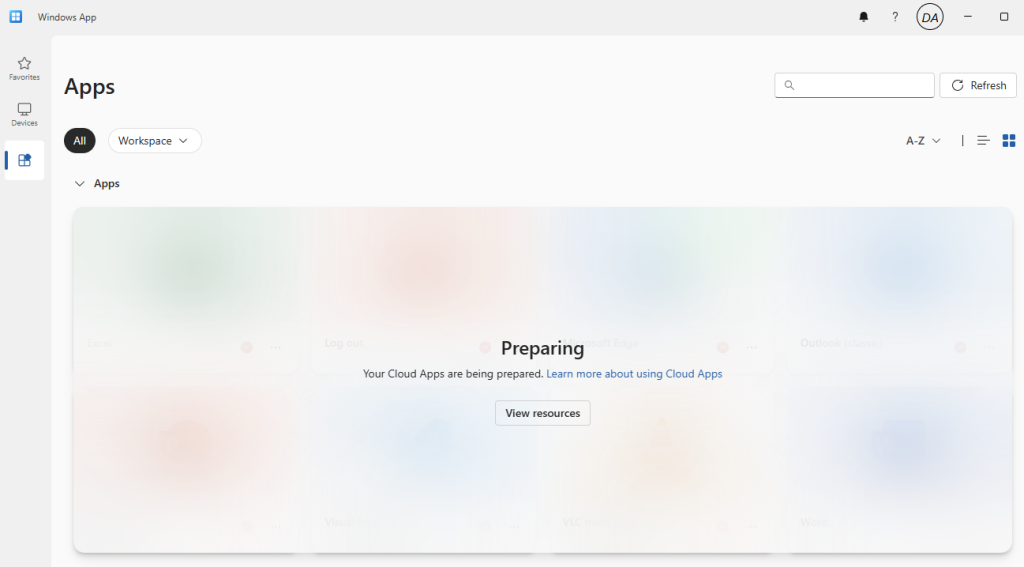
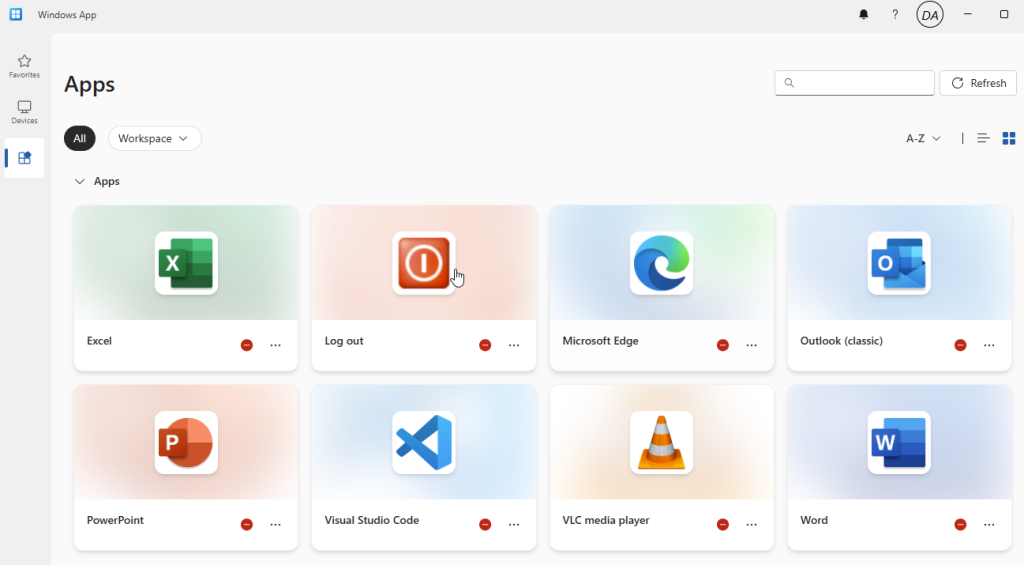
When users select View resources, the Windows app displays all cloud apps, but they are not accessible at this stage.
Conclusion
The Device Preparation Policy brings important improvements to Windows 365 deployments by ensuring that apps, scripts, and configurations are applied before a user’s first sign‑in. This is especially valuable for Windows 365 Frontline in Shared Mode, where consistent readiness is essential.
This article outlined the key steps for configuring and assigning a Device Preparation Policy, integrating it with a Windows 365 provisioning policy, and monitoring deployment status. Even in preview, the feature simplifies Cloud PC setup, enhances reliability, and improves the overall user experience.
As the platform evolves, Device Preparation Policies will play an increasingly important role in delivering fully prepared and seamless Cloud PCs at scale.
Next up: How to Customize Cloud Apps and Add Custom Icons. Continue reading the series here.